> For the complete documentation index, see [llms.txt](https://docs.talisman.xyz/talisman/llms.txt). Markdown versions of documentation pages are available by appending `.md` to page URLs; this page is available as [Markdown](https://docs.talisman.xyz/talisman/introduction/talisman-portal/talisman-staking-and-delegation.md).
# Talisman Staking and Delegation
Using Talisman gives you the ability to stake a myriad of assets directly within the platform. In this guide, we will give you the complete rundown on staking with Talisman.
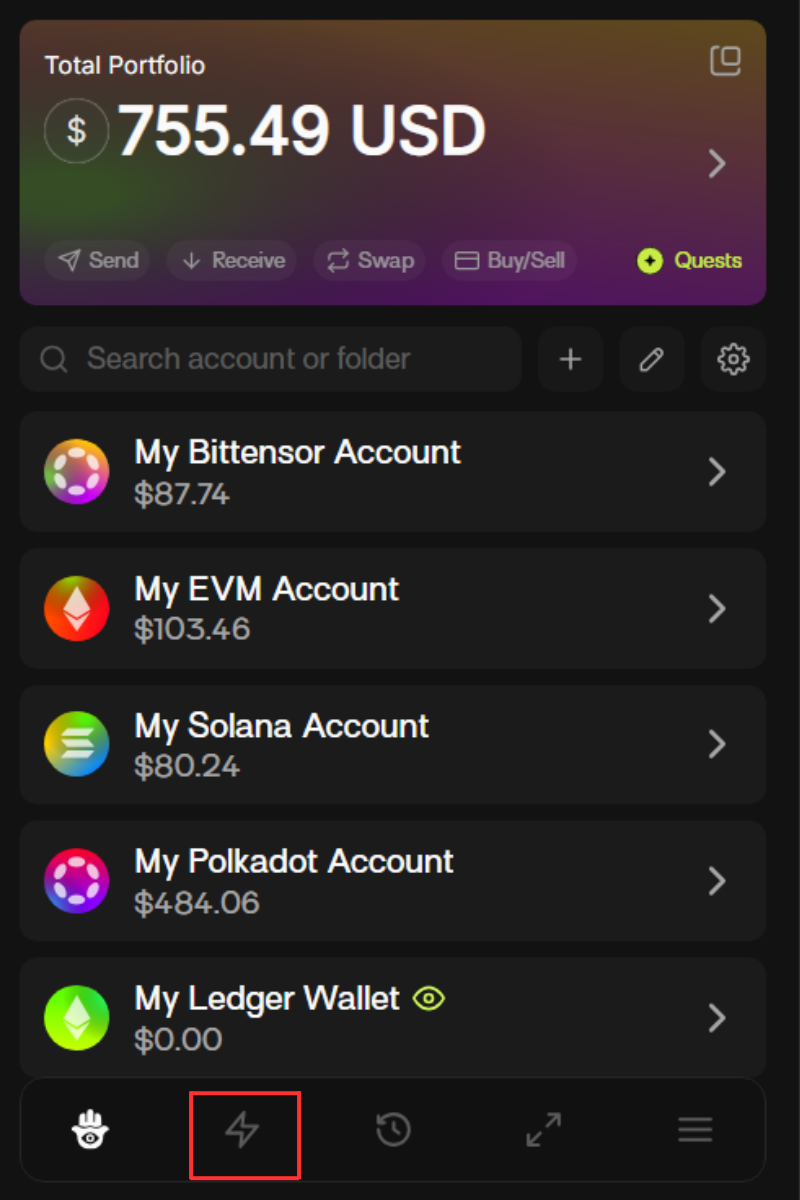
Open up your Talisman extension, and navigate to the “Staking” option on the menu bar.\
Alternatively, you can go directly to[ app.talisman.xyz/staking](https://app.talisman.xyz/staking) to access the Staking dashboard.
#### Staking
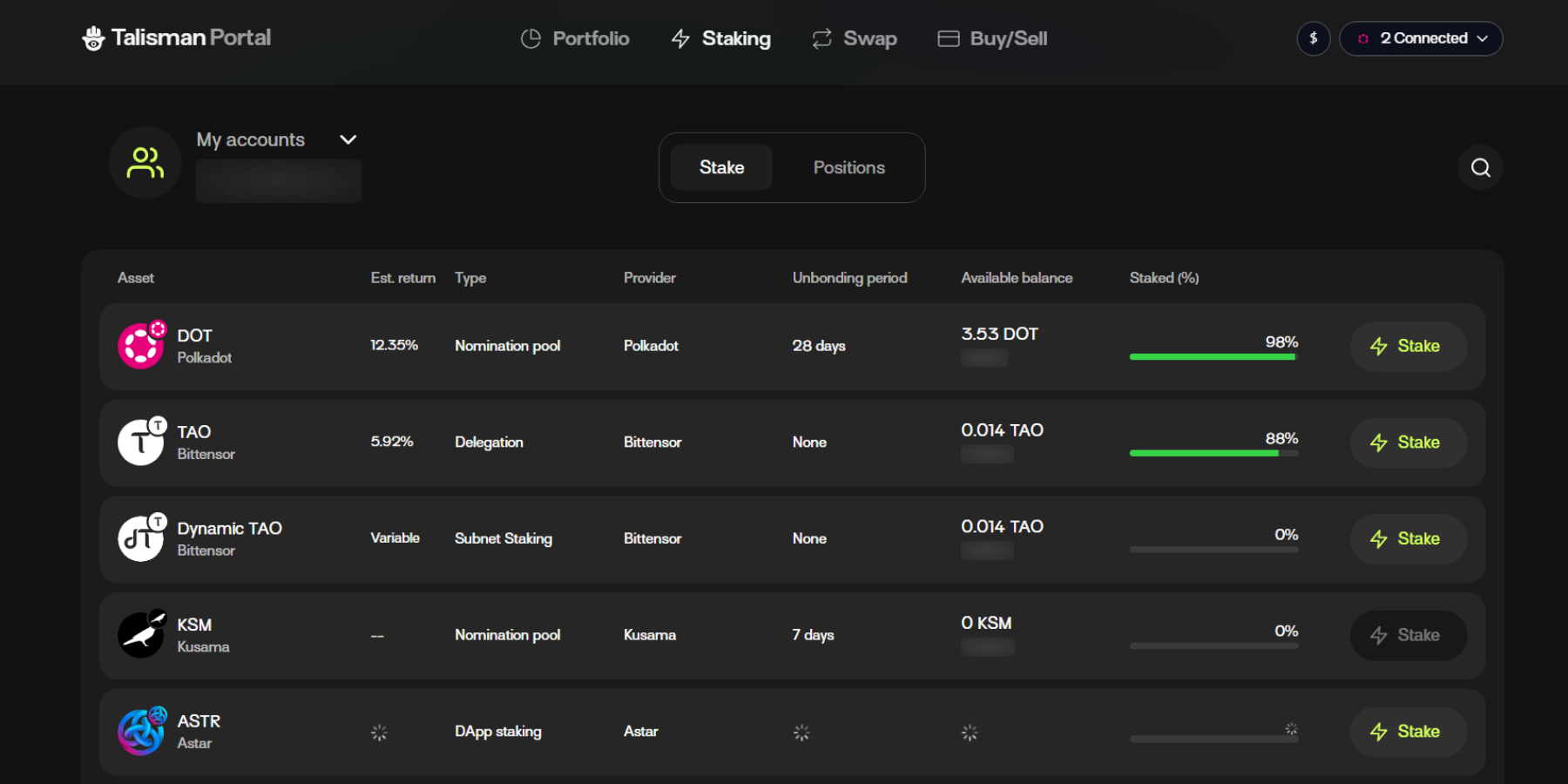
1.You should now be redirected to your Staking dashboard. Here, you can view a complete list of assets that are available for staking on Talisman.\
\ Please note: Talisman does not provide staking services directly. Instead, we have integrated with the native nomination pool protocols for Polkadot and 3rd party liquid staking providers for Ethereum. Please see section below regarding Nomination Pools Custodianship and Safety for more information about nomination pool staking.
\
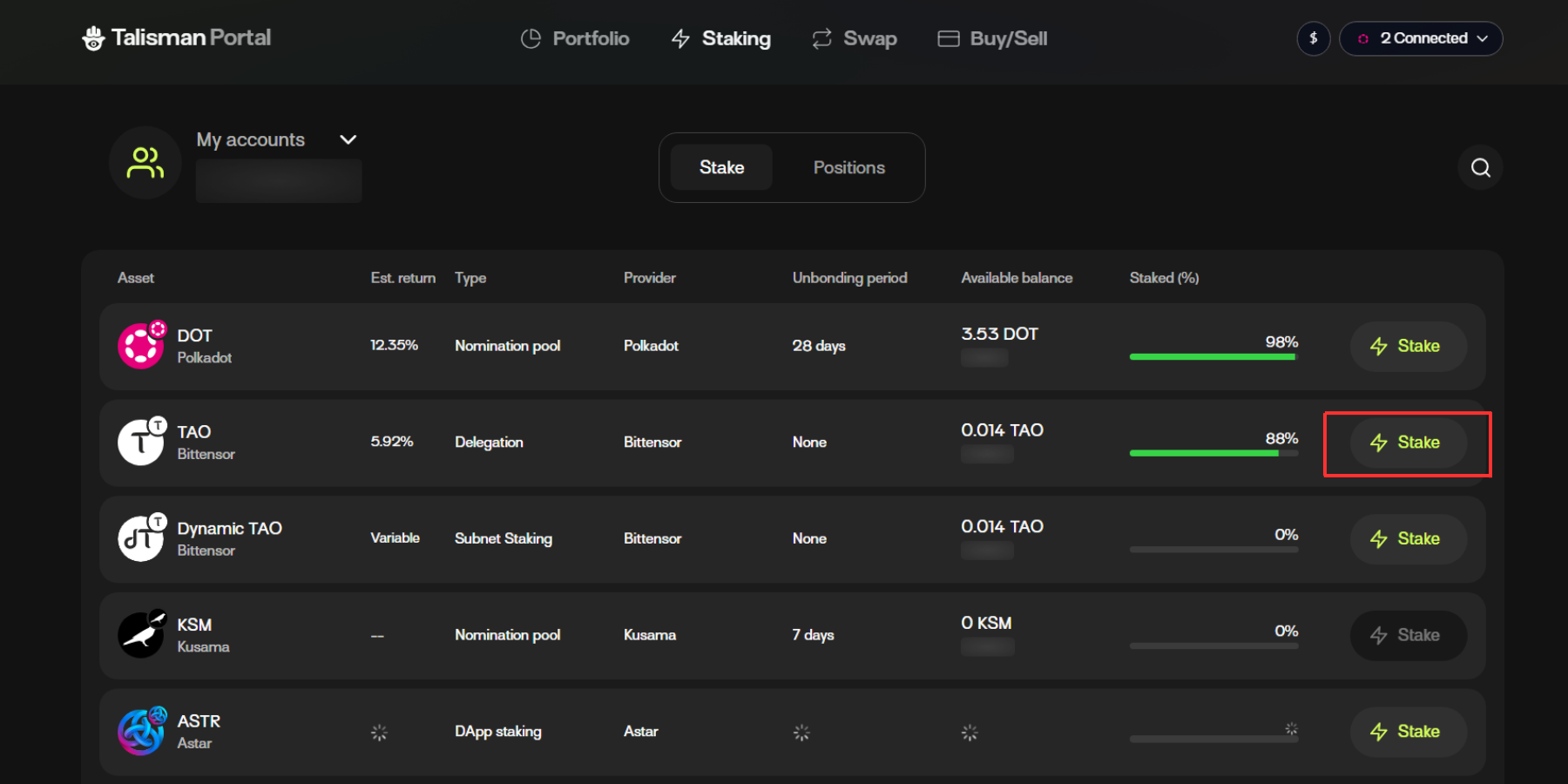
2.From the dashboard, you can choose one of our supported assets to stake. For the sake of this example, we will choose TAO.
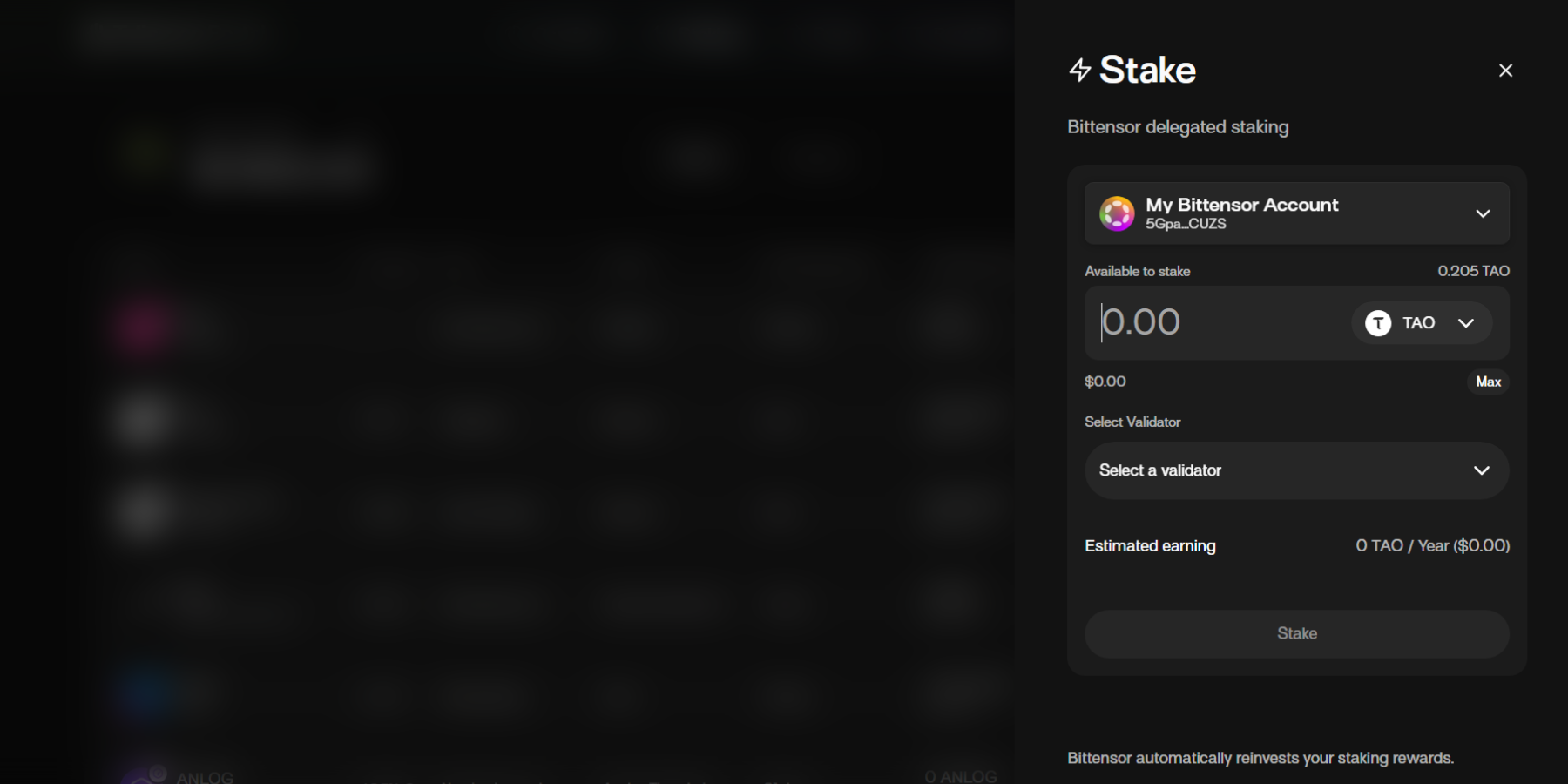
3.Once you’ve chosen your asset of choice for staking, you will be shown a staking drawer where you will be able to select:\
a.Account to stake from\
b.Amount of the asset to stake\
c.Nomination pool to stake with (or which validator to stake with)
Once your choice is made, click the “Stake” button.
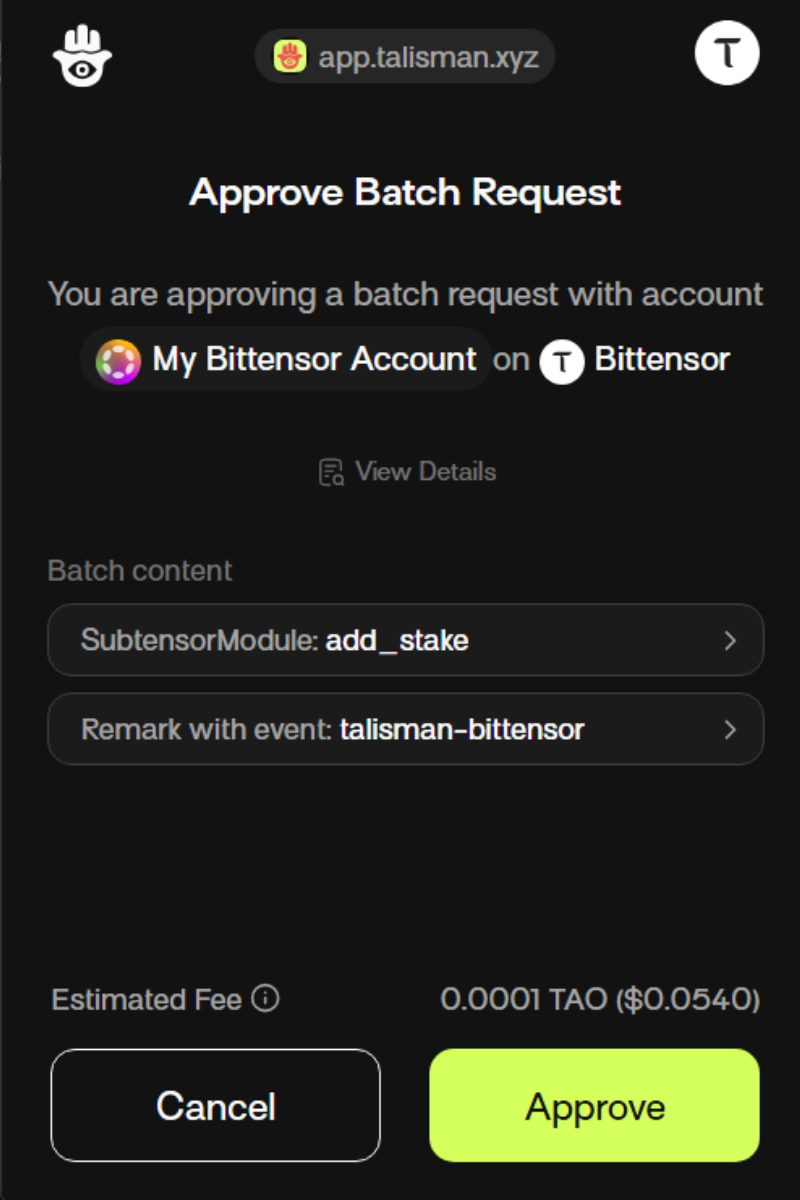
4.From there, approve the staking transaction on your pop-up screen.
#### Positions
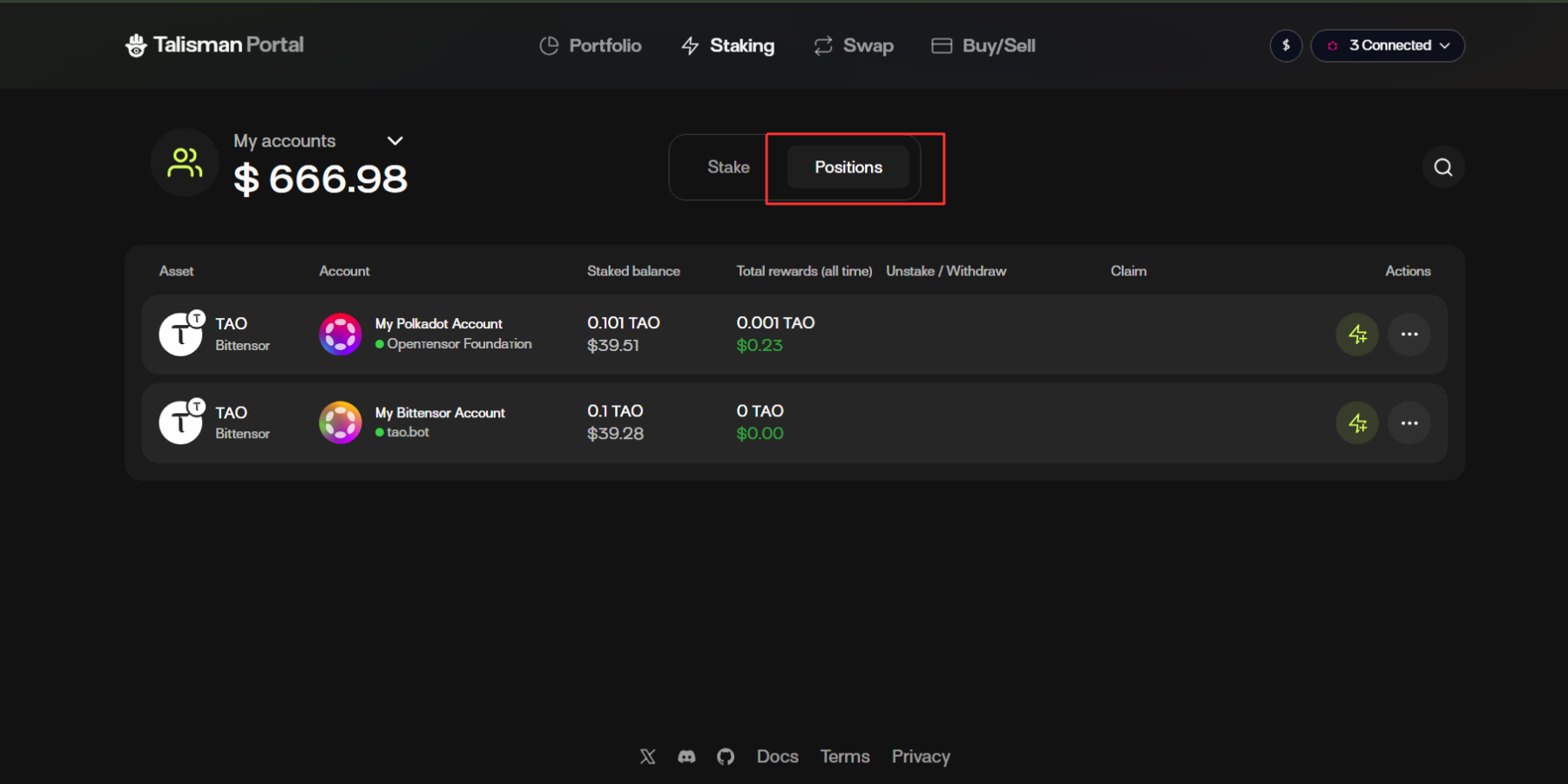
1.With Talisman, you can view your current staked positions. Navigate to the”Positions” button on the Staking Dashboard to be shown your positions.
2. Via your Positions Dashboard, you have the ability to:
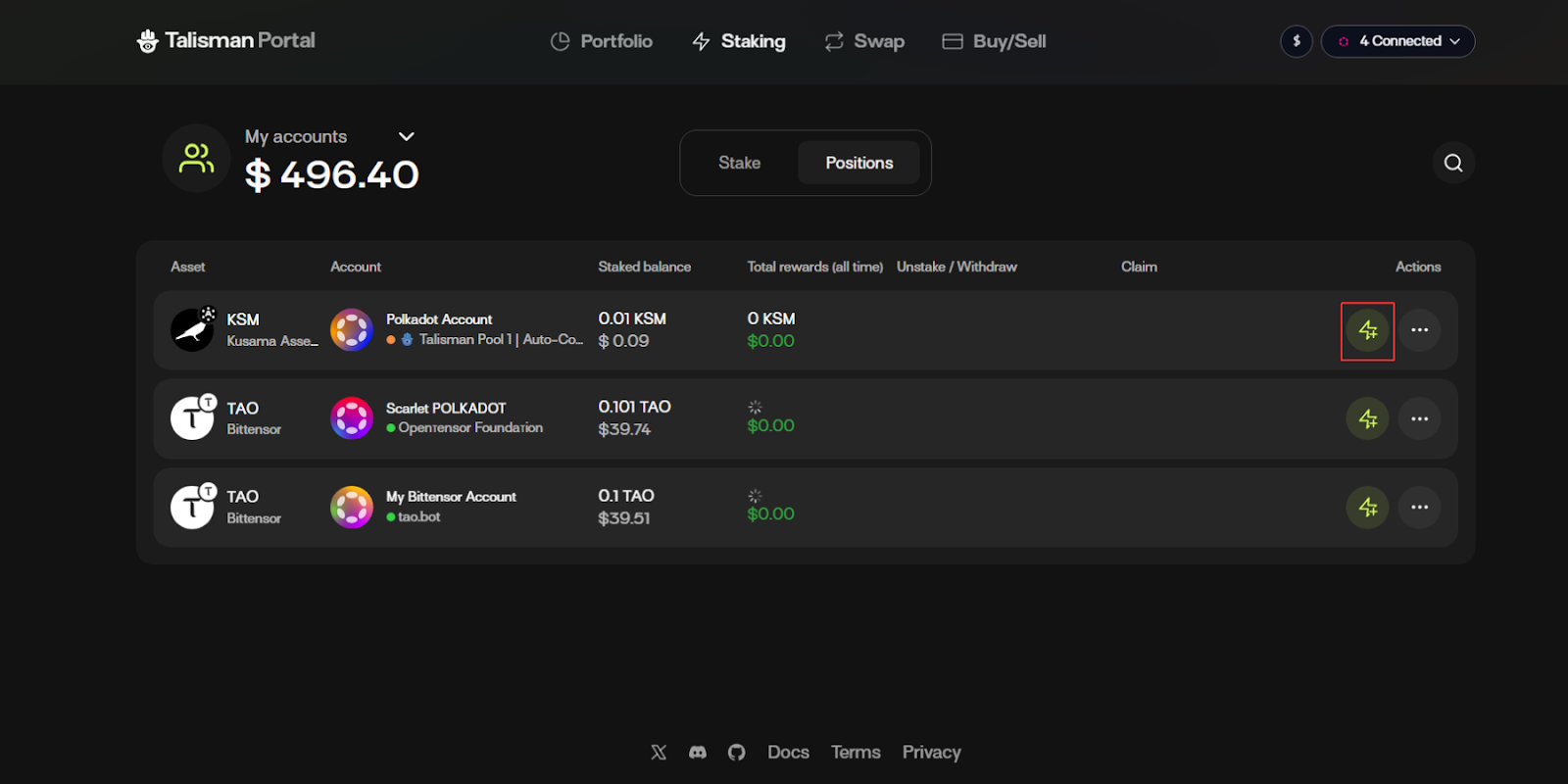
* Increase Stake\
a. Click the “Increase Stake” button to add more assets to an open staking position.
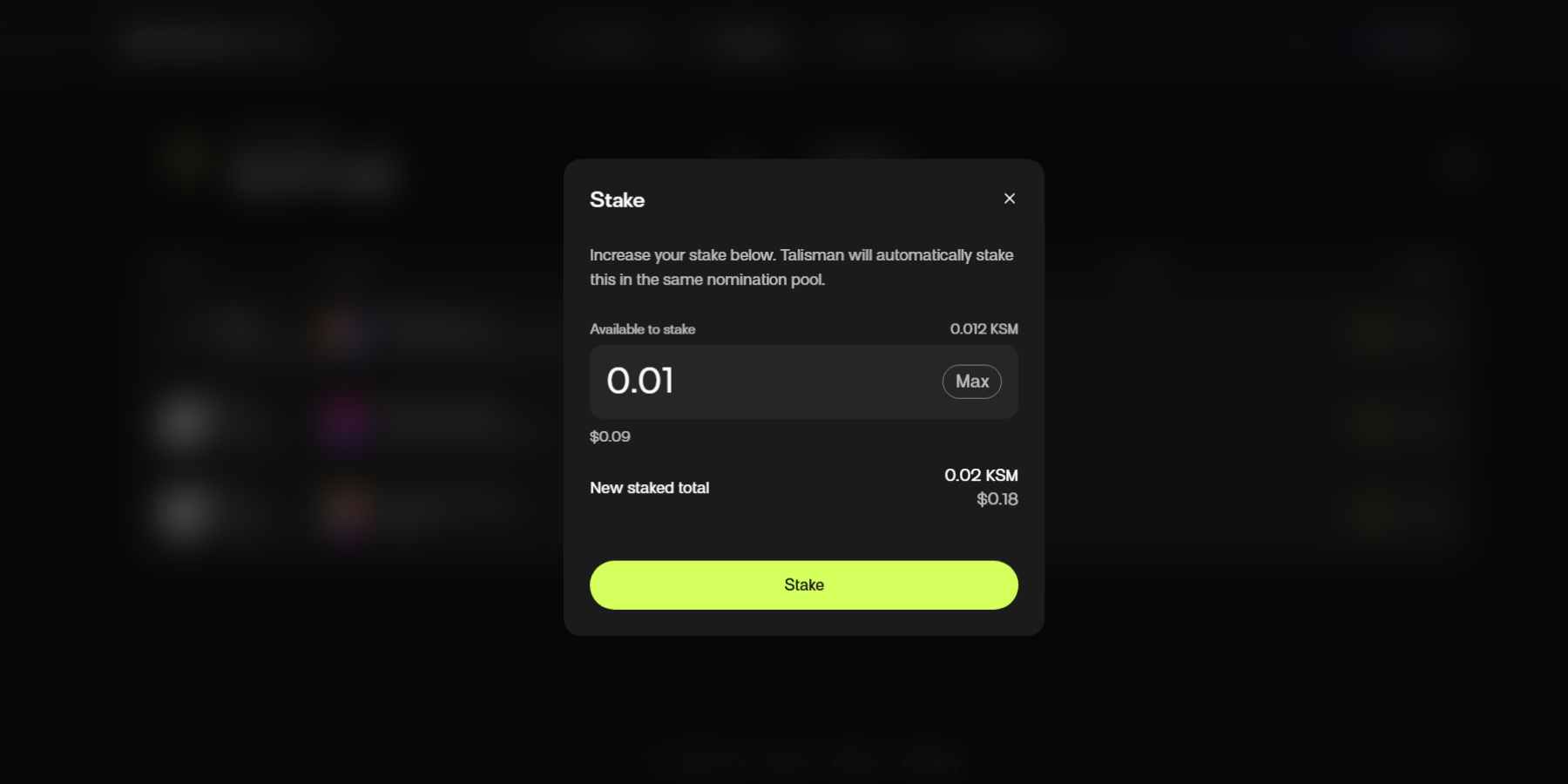
2.Select the amount that you would like to increase your stake by, and click “Stake” to confirm your choice.
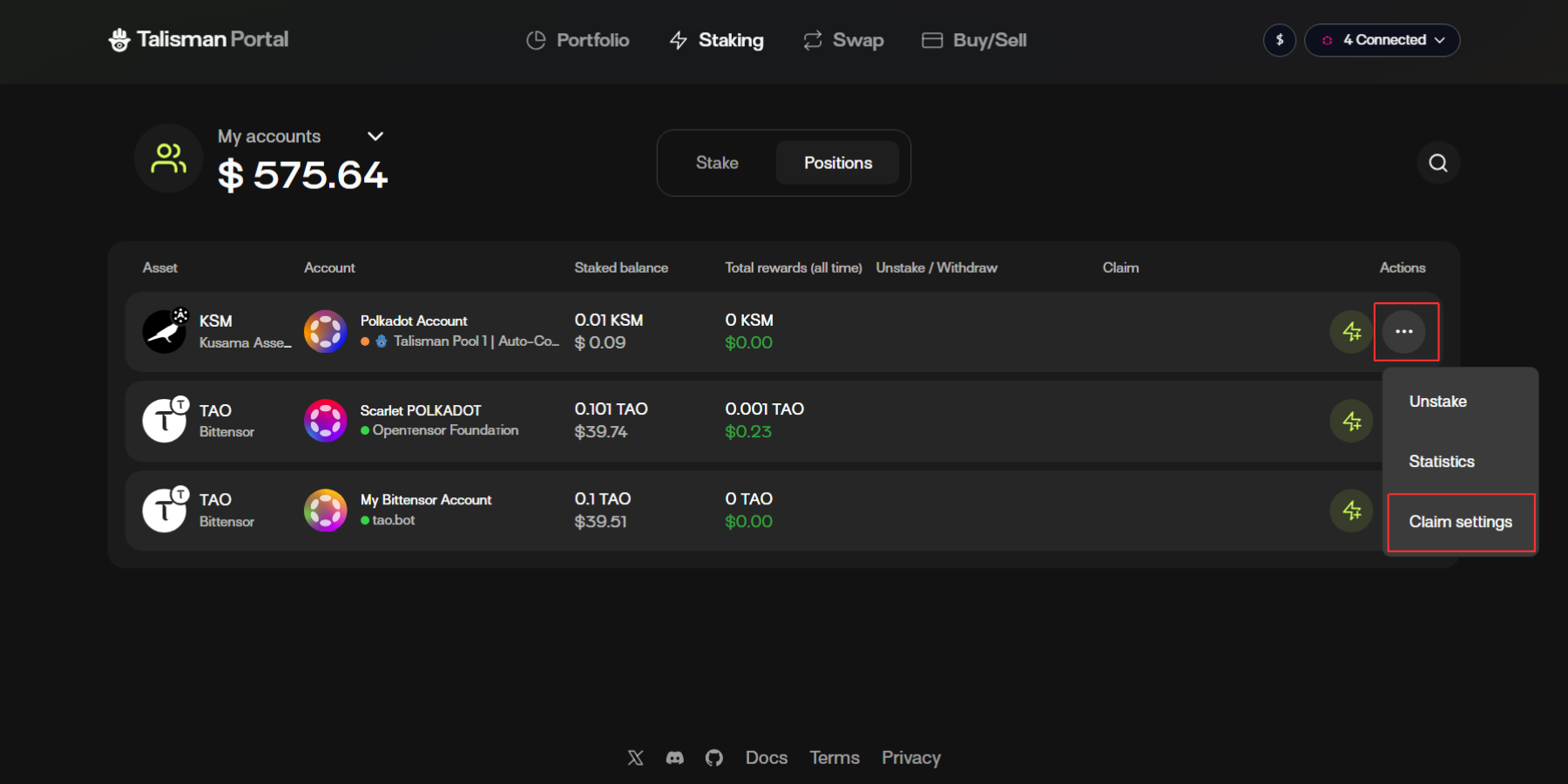
* Perform additional actions, such as:
{% tabs %}
{% tab title="Unstake" %}
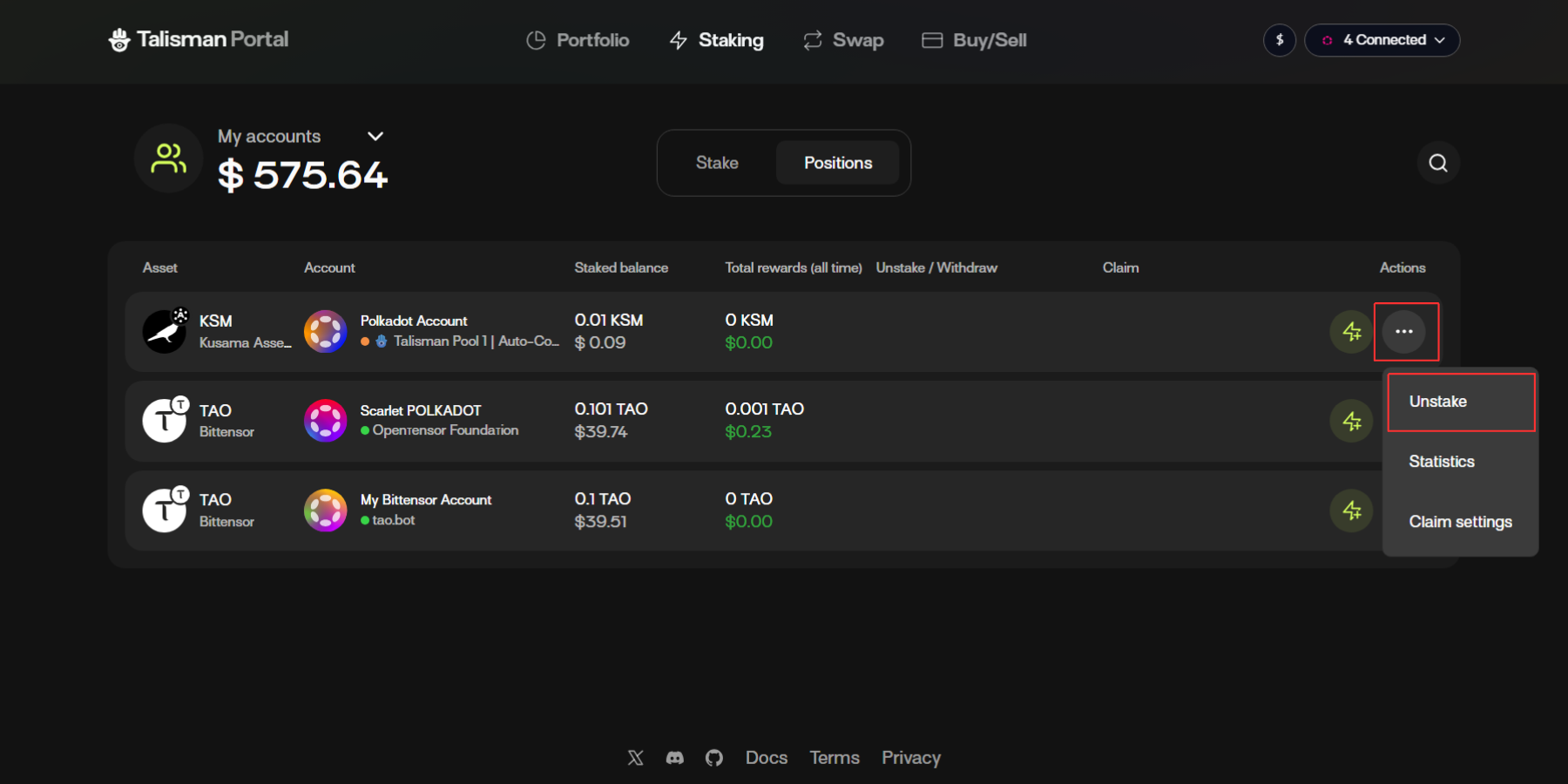
1. Click the “Unstake” button to remove your assets from a position.\
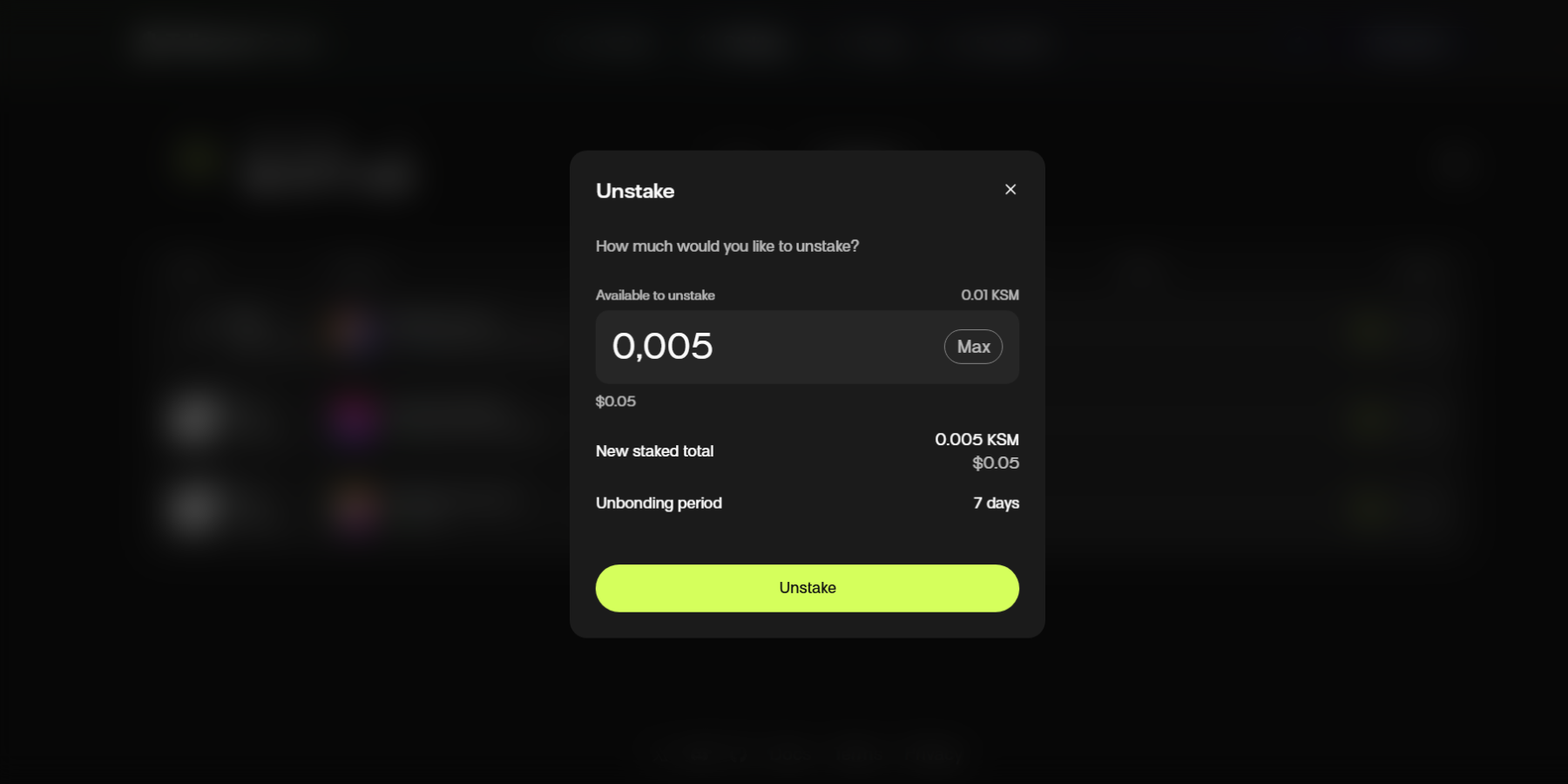
\ Note: Unbonding periods differ from asset to asset. DOT has a 28-day unbonding period, whilst Kusama has a 7-day unbonding period. You can view the unbonding periods for each asset from the main staking dashboard.
2. Choose the amount of the asset you would like to unstake, and click the “Unstake” button to confirm your choice.
Note that once the assets have reached the unbonding period, you must manually withdraw the funds from the nomination pool so that it is returned to your wallet. When this period has been reached, a withdraw button will appear on the position row.
{% endtab %}
{% tab title="Viewing Statistics" %}
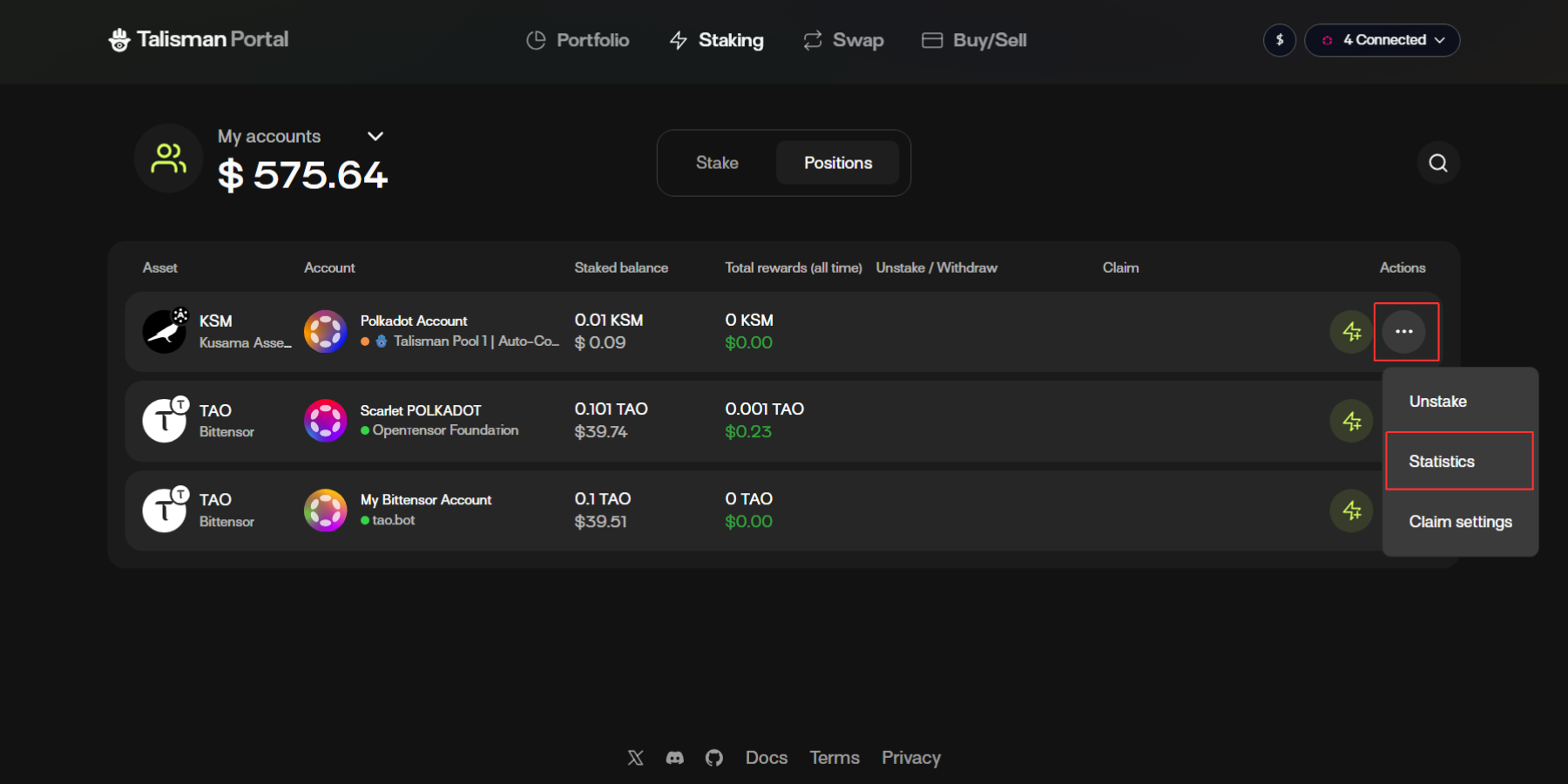
1. View statistics for your staked positions by clicking the three dots next to the Unstaking button. A drop-down menu will reveal the “Statistics” button. (Only available for nomination pool assets like DOT and KSM)
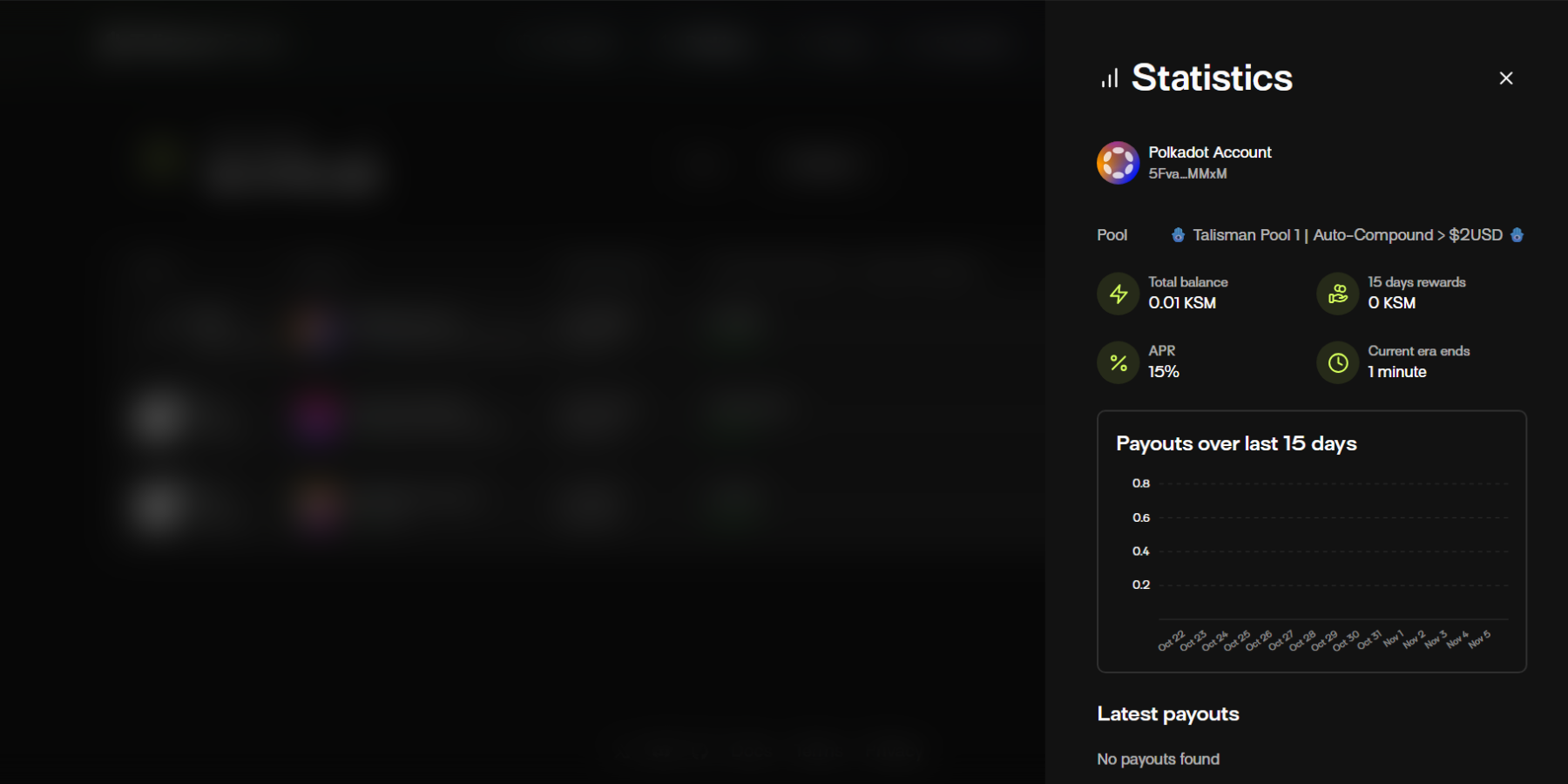
2. Here, you can view a detailed breakdown of your current staking position, with information detailing:
* The staking pool used for a given position.
* The total amount of the asset you have staked in that position.
* Stalking rewards over the last 15-day period.
* Stalking APR.
* Timeline on current staking era.
* Your latest staking payouts.
The amount of an asset you currently have in the unbonding period.
{% endtab %}
{% tab title="Claim Settings " %}
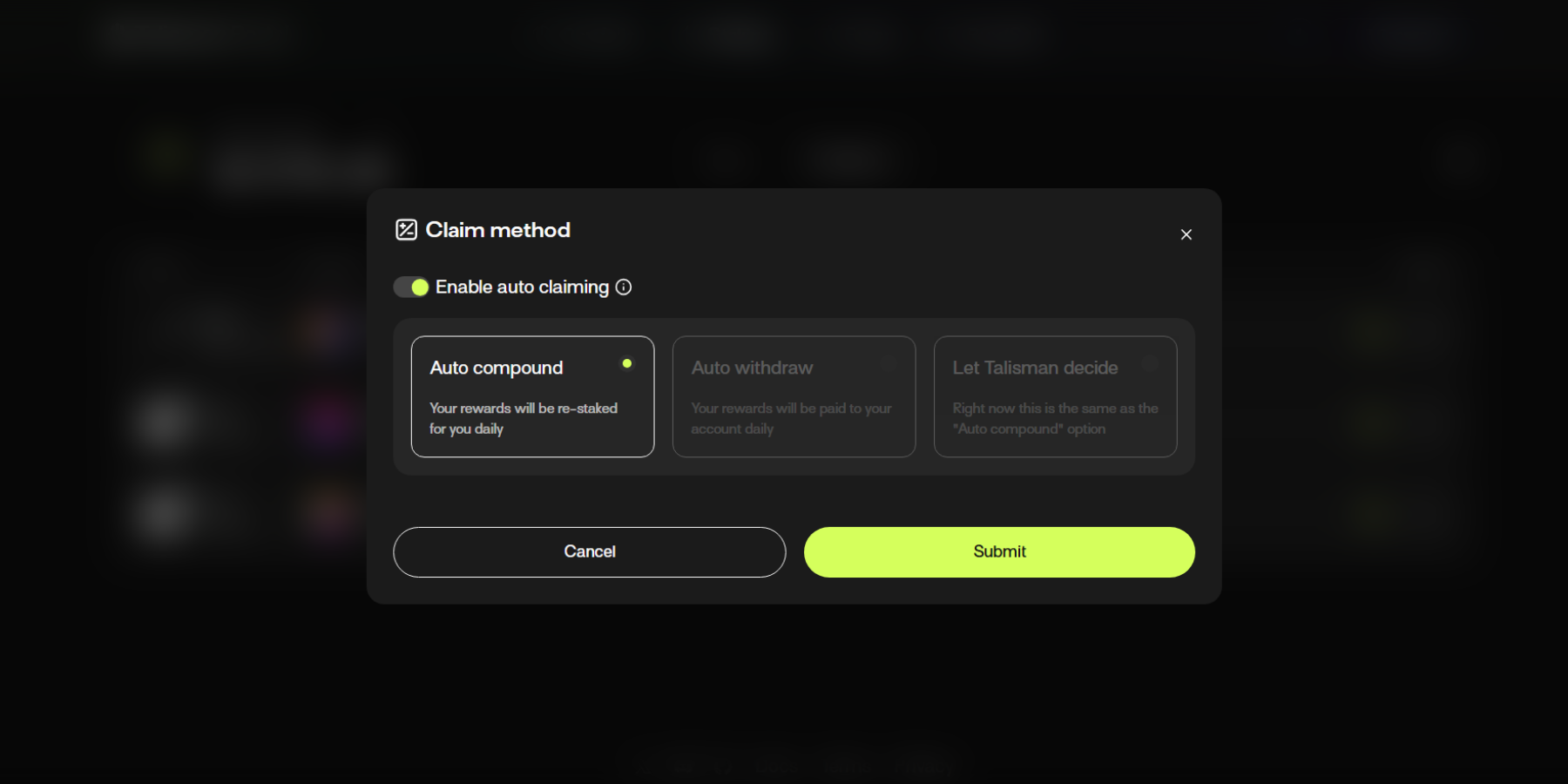
1. Via the “Claim Settings” button, you can modify the way your staking rewards are claimed.
2. By choosing your preferred Claim Method, you can decide if\
a. Rewards are automatically re-staked daily via the Auto-compound option.\
b. Rewards are paid to your account daily via the Auto-withdraw option.
{% endtab %}
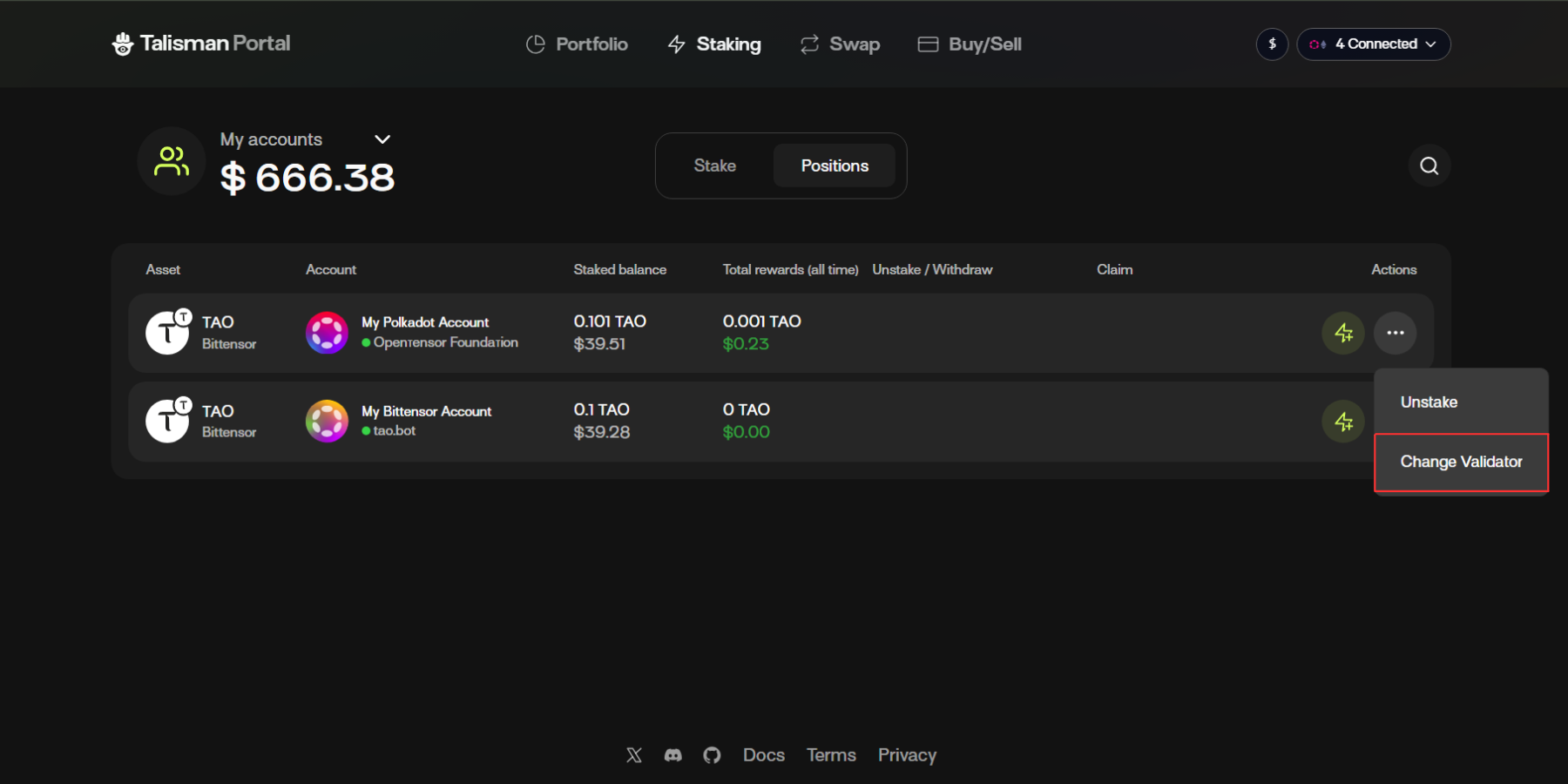
{% tab title="Change Validator" %}
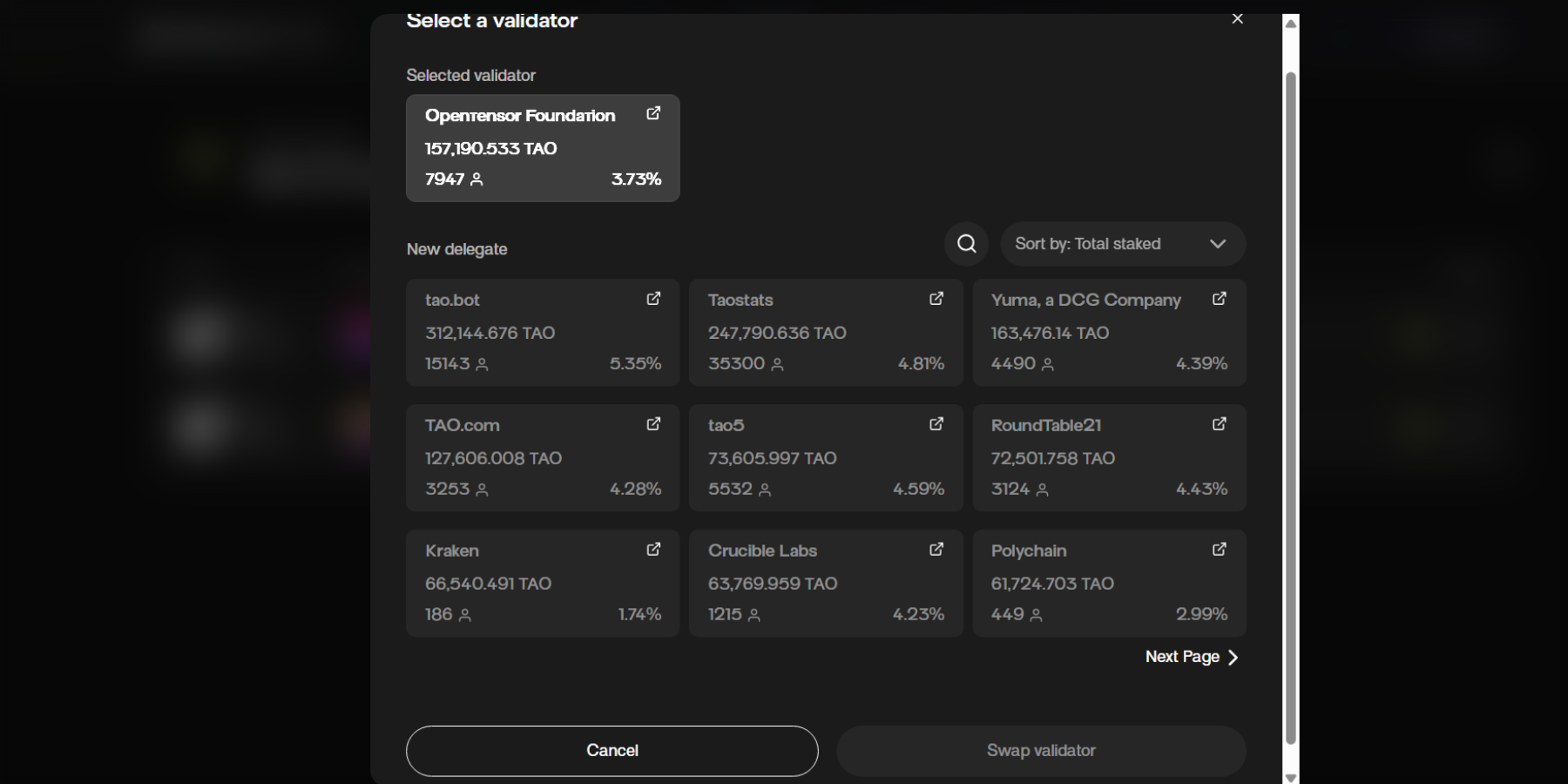
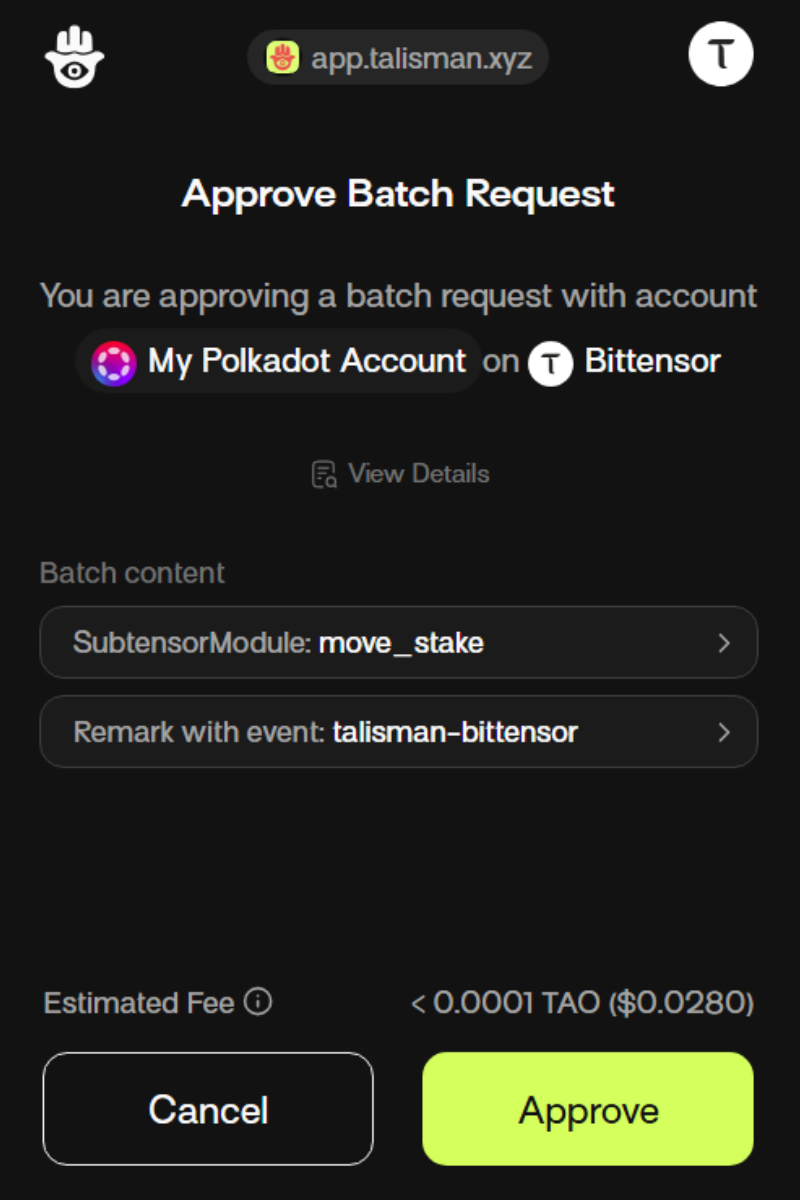
1. For assets where you delegate to validator pools (example Bittensor’s TAO), you’ll find the Change Validator option which can be accessed by clicking the three dot menu.
2. You can select the validator you’d like to swap to and once satisfied, click “Swap”.
3. You’ll be prompted to approve the transaction in your Talisman Wallet.